Dim your screen and turn off animations in every app
Dimness is yours.
Your screen can go dark, dim below its floor, turn warm and play no animations. Here is what TrueTo sets for less light and less motion.
Two kinds
of users.
The right fit
for everyone.
Dim
Less light, less motion.
Bright
More light, more motion.

Learn how your apps light the screen.
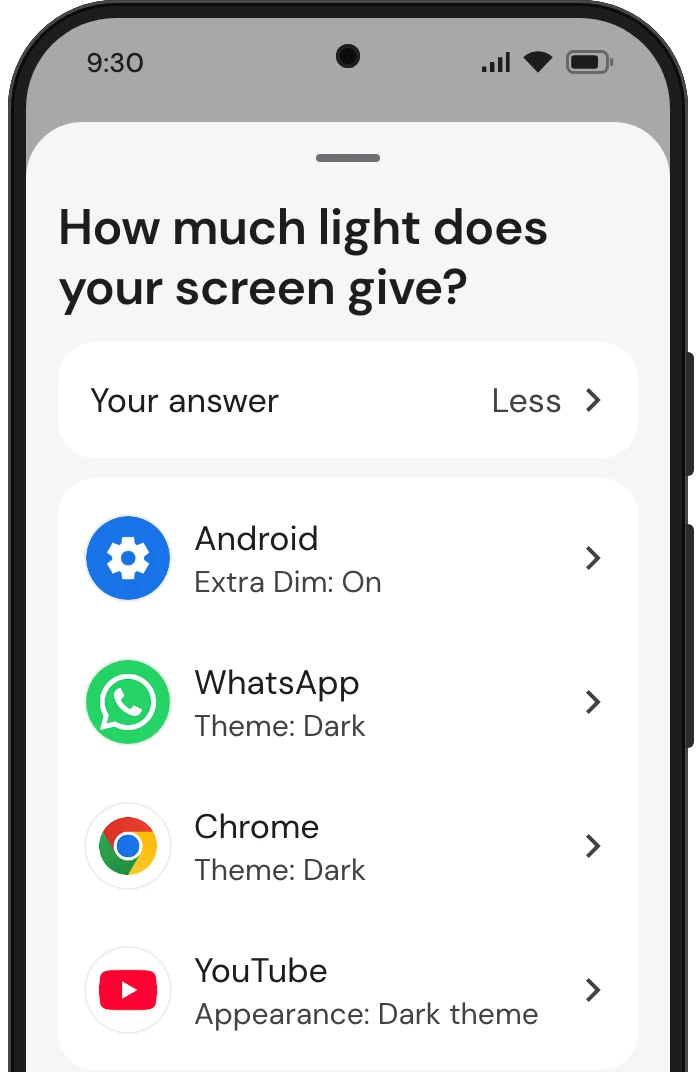
Your phone and your apps decide whether the screen is dark or light, how bright it gets and how warm its light is. TrueTo sets each of them for less light.
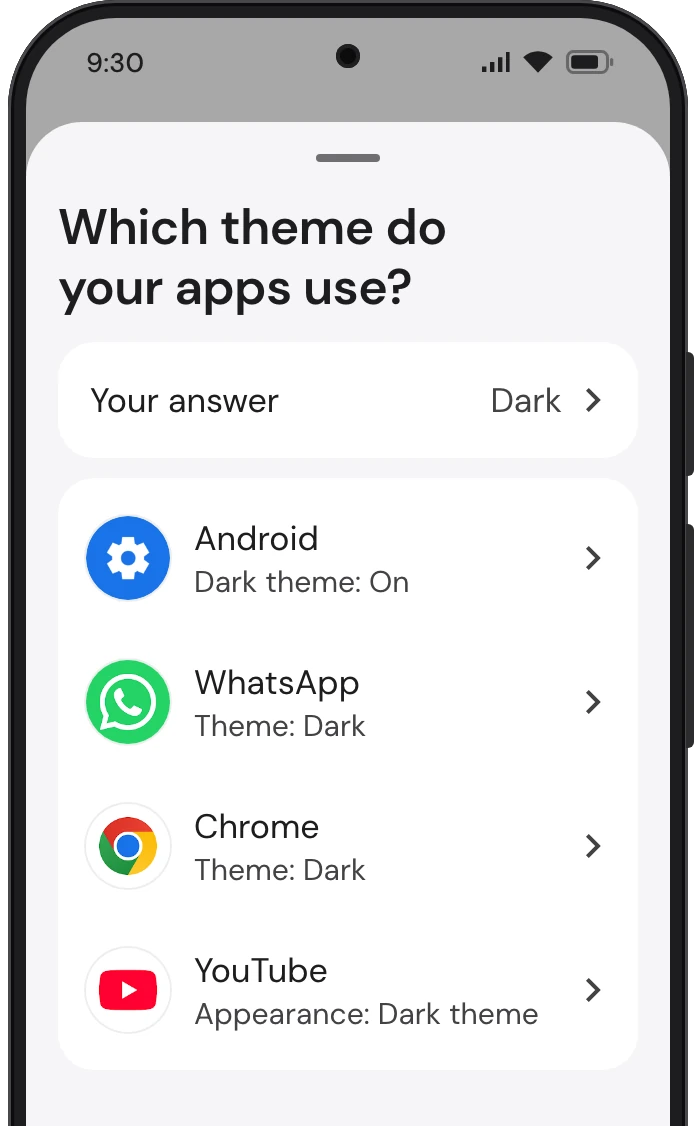
Android can turn every app that follows it dark, and YouTube, Chrome and WhatsApp each keep a theme setting apart from it. TrueTo sets each to dark.
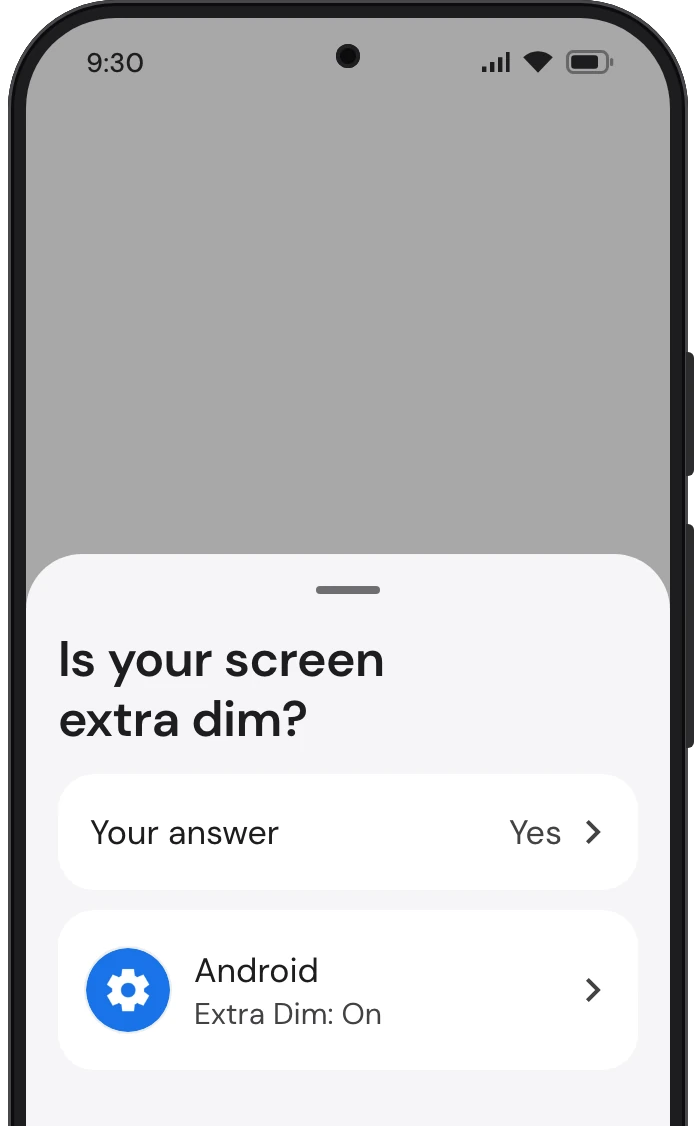
Android’s brightness slider stops at a floor, and Extra Dim takes the screen below it, with an intensity of its own. TrueTo sets Extra Dim on.
Android can tint the whole screen warm, taking out its blue-white cast, over every app at once. TrueTo sets Night Light on.
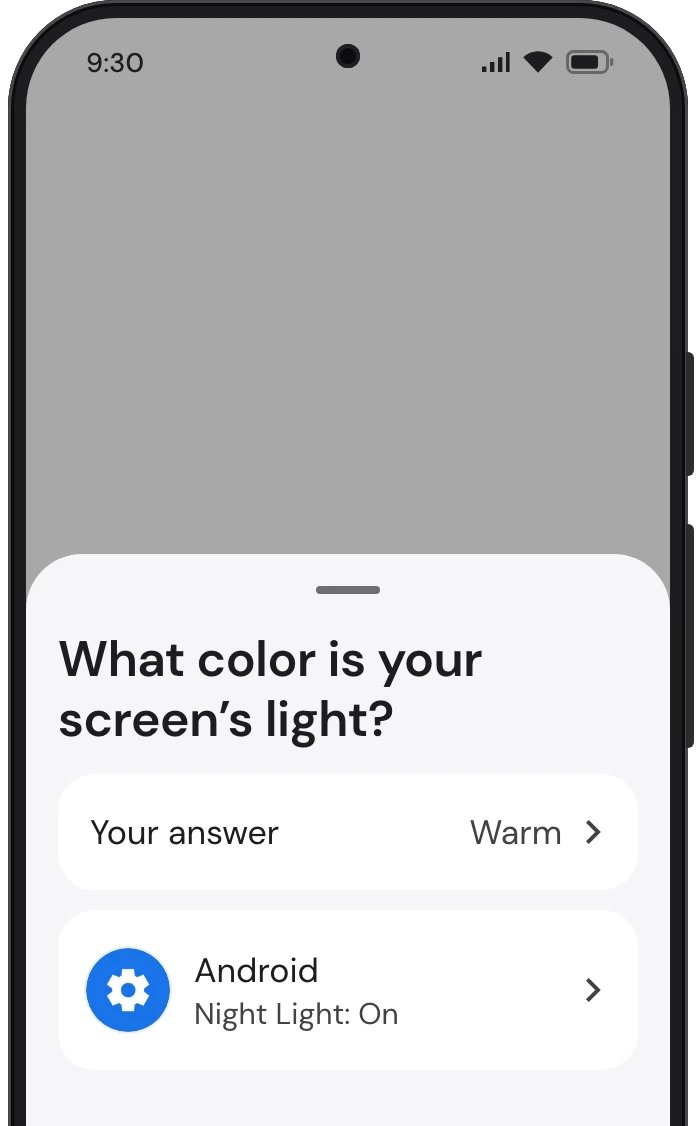
Keep your screen still.
Stop your phone and your apps animating screens and playing video on their own.
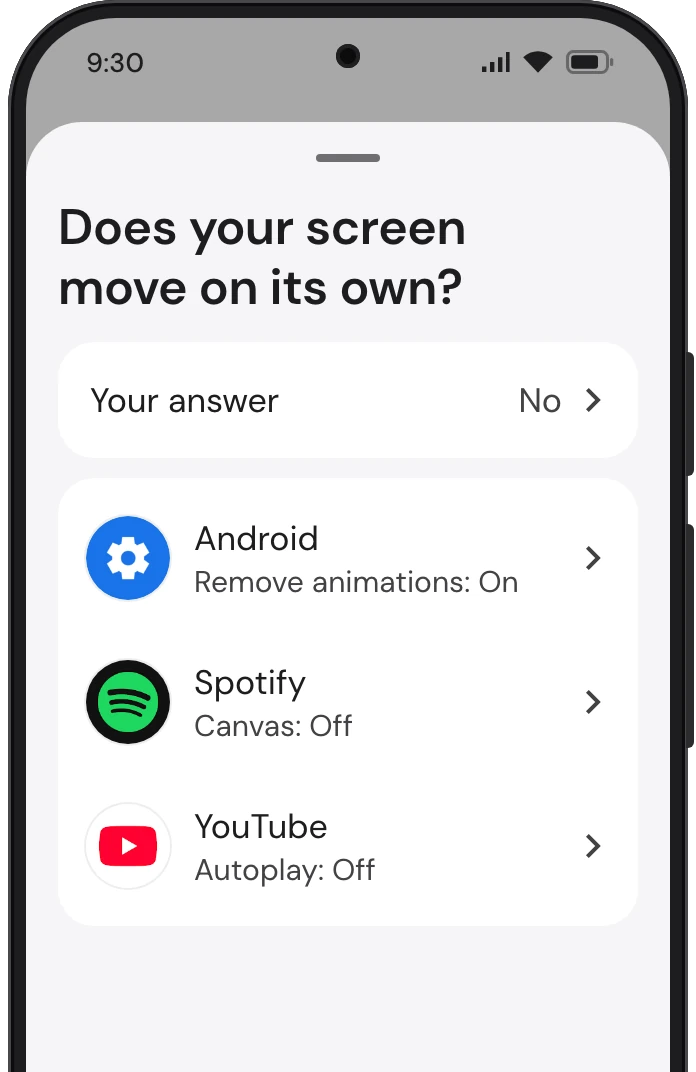
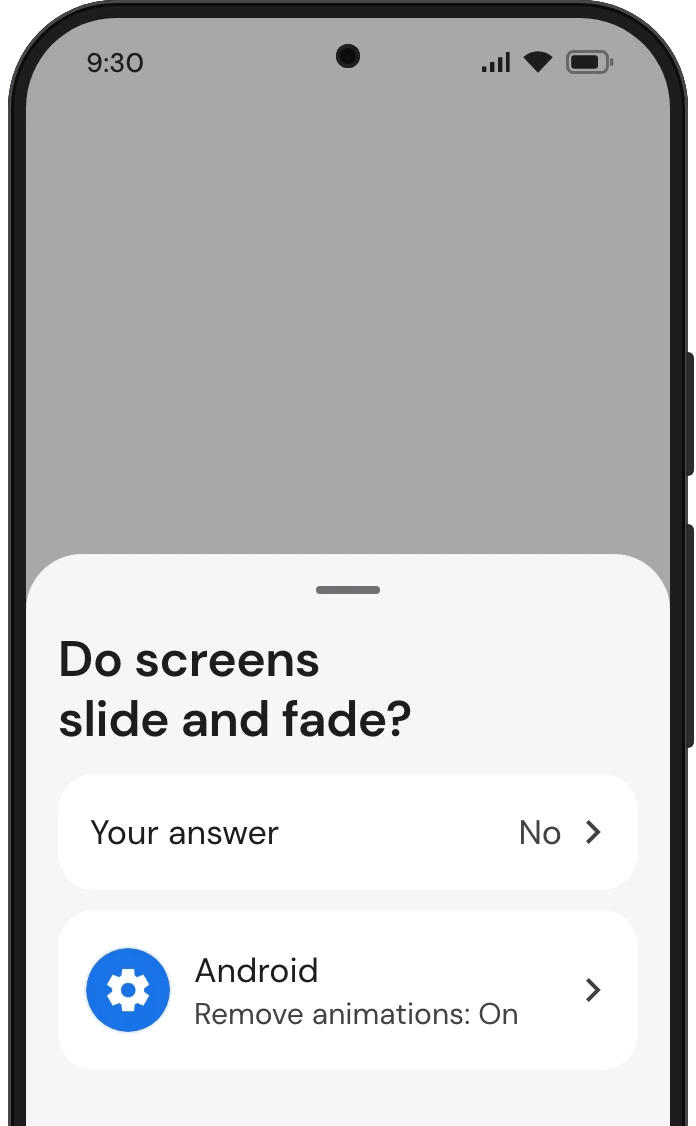
Android slides each app in as you switch to it and fades each menu into view. TrueTo sets Remove animations on.
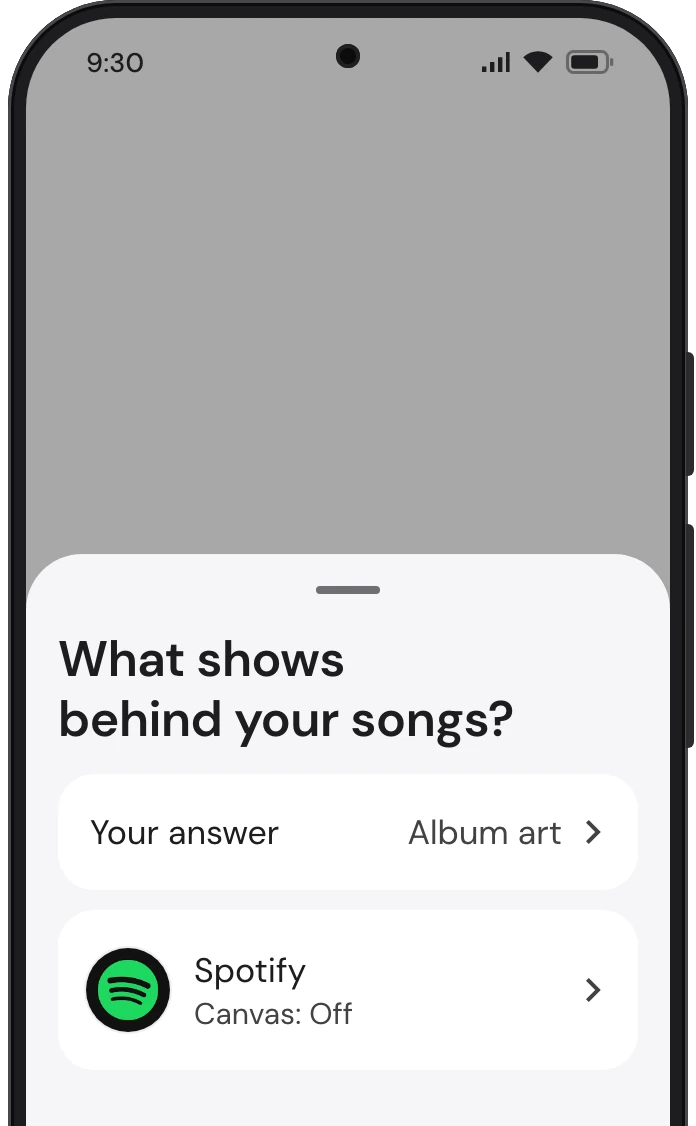
Spotify plays a short looping video behind the song on the Now Playing screen, in the place of the album art. TrueTo sets Canvas off, so the album art shows.
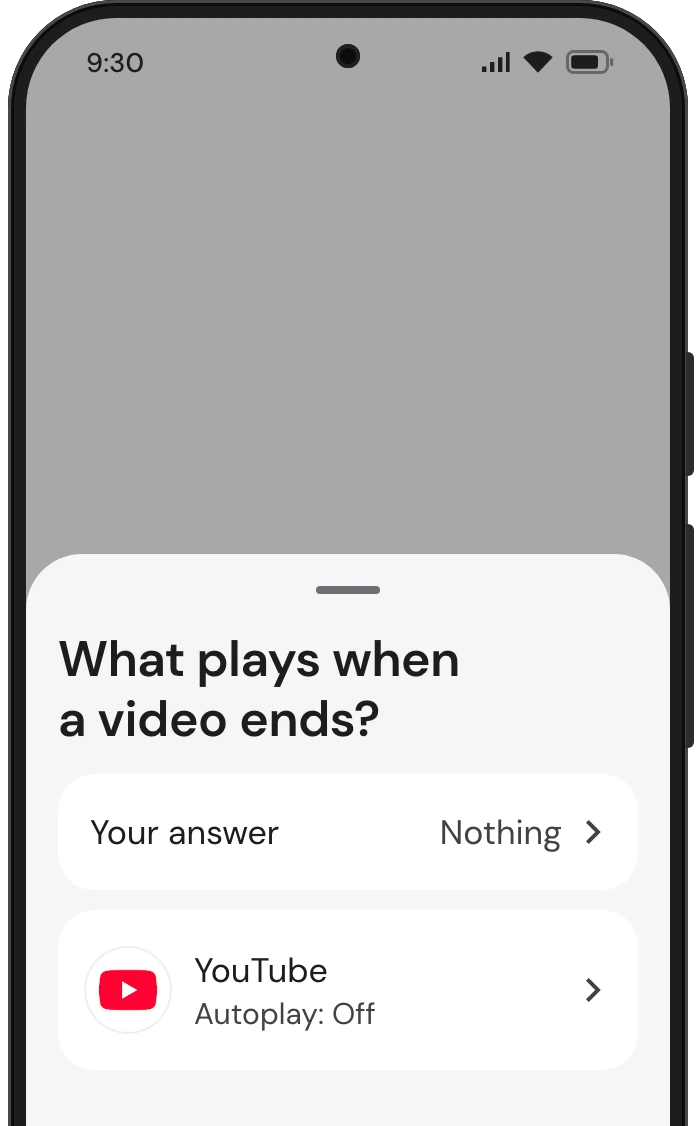
YouTube starts another video the moment the one you’re watching ends, and the next after that. TrueTo sets Autoplay off.
Get started
with TrueTo.
Download it from Google Play and change any setting back.